

In March 2026, Microsoft introduced a new SharePoint app bar, along with new options for how to present your SharePoint Home site to employees within the Microsoft Teams desktop and mobile app. When configuring your overall experience, you can now choose between a preset fixed layout to surface your Home site content or a custom layout option, which more closely aligns to your intranet homepage strategy. Here is what you need to know:
Alongside this new capability, Microsoft chose to roll Viva Connections into SharePoint and the integration with Teams is now called the SharePoint app for Teams. Goodbye Viva Connections!
There is also a new left-hand bar in SharePoint called the SharePoint app bar. It is an evolution of the previous app bar and is intended to help people access their SharePoint Home site experience (i.e., their intranet), find important sites, see what’s new and manage their content.
If you have a SharePoint intranet, you will want to consider how to connect your SharePoint intranet content into Microsoft Teams using either the fixed or custom layouts.
In this post, we’ll highlight the pros and cons of each option to help you choose the right overall approach.
New SharePoint app for Teams fixed layout (aka Viva Connections)
With Microsoft’s recent changes, the Microsoft Teams Viva Connections experience has evolved to offer two configurable options for how your SharePoint Intranet Home site content shows up in the SharePoint app for Teams. The first option is referred to as the “fixed” option. It offers a simple starting point for organizations that don’t want to put too much thought or effort into setting up and configuring their intranet homepage experience in Teams. For the Teams desktop experience, you will see a fixed layout with features like the filmstrip for sharing news, dashboard and resources links. If you select the fixed layout for the Teams mobile experience, the SharePoint app for Teams will default employees to the dashboard tab. Navigation buttons that look like pills will appear at the top of the app to enable users to select either the Dashboard or News which is aggregated from across SharePoint.
Many companies underestimate what is involved in building a quality intranet experience and the fixed layout offers a simple starting point.
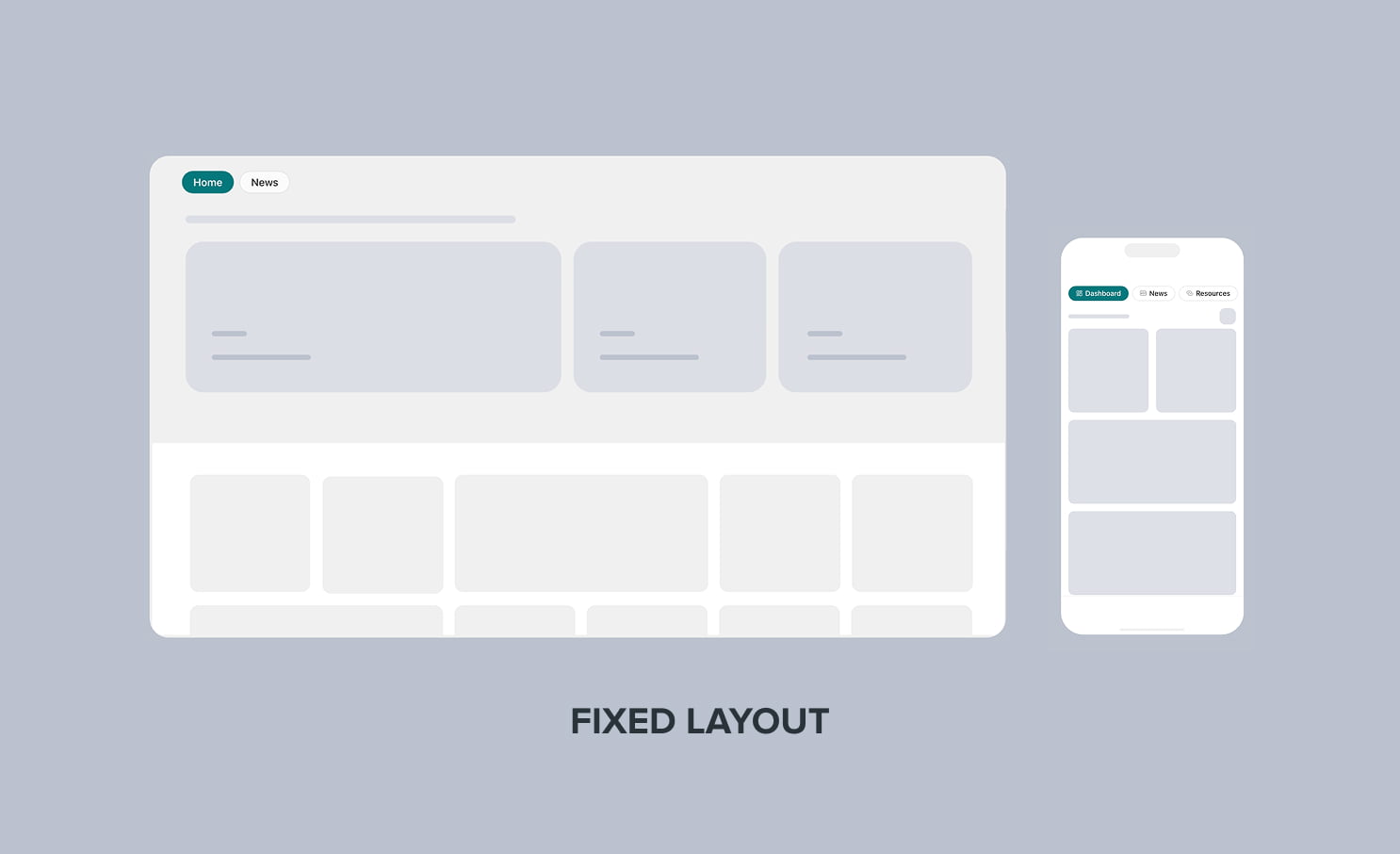
Pros of the SharePoint app for Teams fixed layout:
- Minimal setup effort
- You can use and configure the Microsoft-provided dashboard cards to quickly create a dashboard
- You can use third-party dashboard cards and create your own
- Minimal effort is required to provide a mobile experience if Microsoft Teams is already deployed
- No additional licensing
Cons of the fixed layout:
- The news experience is basic and doesn’t provide much control for Internal Communicators to tweak or adjust the priority of their news experience
- Isn’t well suited for large, complex enterprise communications and information sharing needs
- Dashboard cards can be difficult and time consuming to develop and the marketplace of third-party dashboard cards is limited
- You cannot completely configure the experience to focus only on corporate news
New SharePoint app for Teams custom layout
If the new fixed layout doesn’t meet your needs, you’ll want to consider the custom layout approach. Companies that go this route can add features to your intranet’s homepage using SharePoint’s out-of-the-box web parts, acquiring third-party web parts and building custom web parts.
The new custom layout option allows you to select a SharePoint Home site where you’ve tailored a homepage with your own design and web parts that meet your needs. When a user selects the Home button in the SharePoint app bar, they are taken to your custom SharePoint Home site. If you’ve connected many sites together using SharePoint’s hub architecture, you can include a traditional intranet navigation experience that allows employees to navigate across the different SharePoint sites that make up your intranet.
If you select this option, the SharePoint app for Teams will default to your responsive homepage, rather than the fixed layout in the Teams desktop app or the dashboard in the Teams mobile app. You can also configure theSharePoint app for Teams mobile navigation experience to include the news tab (or not) and/or you can reorder the navigation items. Communicators may prefer this approach if they don’t want to start with a dashboard but rather display their carefully curated intranet homepage to everyone.
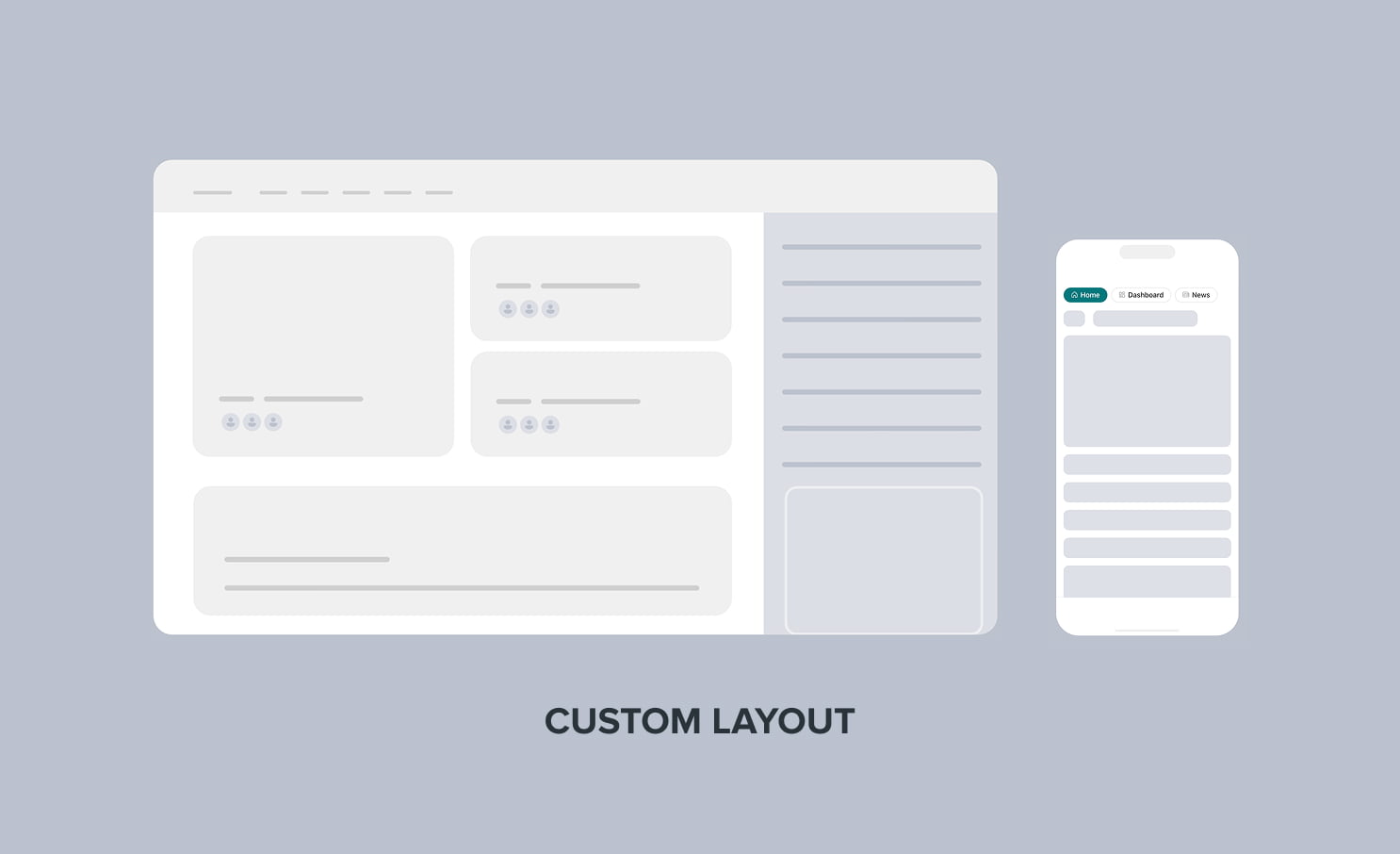
Pros of the custom layout approach:
- You can design your homepage to reflect your brand and include web parts that are the most relevant to your organization and your users, and this experience shows up in both the Microsoft Teams desktop and mobile apps
- A strong responsive mobile experience provided by the SharePoint app for Teams—no need to force your users to download yet another app
- SharePoint includes a broad set of features and capabilities that can be configured
- Microsoft provides a standard approach for developing web parts using the SharePoint Framework; however, this can be a double-edged sword (see cons)
Cons of custom layout approach:
- You may want more IT involvement to create a usable SharePoint homepage experience beyond what you get out-of-the-box with a basic SharePoint site template.
- You may feel essential intranet features are missing or struggle making the out-of-the-box features perform exactly how you want them to look.
- Developing custom intranet features is time consuming and expensive and requires ongoing support and maintenance to ensure alignment with the ever-changing Microsoft 365 platform.
Are you struggling to create a great intranet experience in SharePoint Online and Teams?
If you want to build a modern intranet experience in SharePoint, but are struggling to get it right, you have a third option to consider: a ready-made, packaged intranet solution built for SharePoint like our GO Intranet. GO is built in SharePoint and snaps in perfectly to the new SharePoint app for Teams bringing a combination of communication and knowledge sharing capabilities to SharePoint that will empower your internal communications team and make it easy to connect with everyone, anywhere they work.